Scheduled overview
A Scheduled campaign fires on a recurring cadence instead of a member event — daily, weekly, every other week, every 30 or 90 days, or yearly. It walks through the matching audience and runs actions on each tick. Non-daily cadences take a start date, and any cadence can carry an end date, which caps how long the campaign keeps repeating. For one-shot pushes use Future Campaign; for event-driven use Rule.
A Scheduled campaign wakes up on the schedule you set, walks through the members who match its audience, and runs its actions against them.
Birthday and anniversary campaigns are the classic case and still the most common one, but the kind is no longer limited to them: the cadence menu covers weekly and longer patterns, and the audience exposes the same member filtering you get everywhere else in the platform.
This page is the map for the Scheduled kind. Most of the shape is shared with Rule; this page focuses on the differences.
What makes something a Scheduled campaign
Three properties define it and separate it from the other four campaign kinds:
- Schedule-triggered. A Scheduled campaign starts because a moment on the clock arrived, not because a member did something. Contrast with Rule (event-triggered) and Future Campaign (also date-driven, but one-shot instead of recurring).
- Uses the same action set as Rule. Scheduled exposes the full 9-action menu, not a subset. There is one difference: points and credits are entered as a fixed amount, never a percentage, because a percentage needs a purchase to be a percentage of and a scheduled run has none. See the Actions catalog.
- The audience is the whole filter. Because there's no triggering event to key off, whichever members you target on the audience tile are the members the campaign runs against on each tick. If you want to narrow the run further, you do it in the audience, not in a step-2 conditions block the way you would on a Rule.
When to reach for Scheduled
Pick a Scheduled campaign when the answer to "what starts it?" is the calendar rather than something the member did. That covers two shapes:
- A date the member carries with them — a birthday, a join anniversary, a renewal day. The campaign runs daily and the audience narrows each run to "the members for whom today is the relevant date."
- A cadence you choose — a weekly, fortnightly, quarterly or yearly touch on a population you define. Here the frequency does the work and the audience just says who's in scope.
Examples:
- "Send a birthday gift to members whose birthday is today, every day at 10am." → Scheduled, Every day at 10:00, audience narrowed to Birthday Day & Month = Execution day and month.
- "Thank members on the day they joined, every year." → Scheduled, Every day, audience narrowed to Registration Anniversary = Execution day and month.
- "Every 30 days, send a win-back offer to the members who have drifted into At Risk." → Scheduled, Every 30 days, audience narrowed to Tags contains
RFM:atRisk. See the Win-back cadence playbook.
Compare:
- If the cadence is "once, on a specific date" rather than recurring, use Future Campaign instead. That includes announcing a limited-time offer: an offer that runs all week is still one announcement, not a recurring campaign.
- If the trigger is a member event (purchase, tag change, coupon entry), use a Rule.
- If you want a silent discount applied at the register instead of a scheduled action, use a Deal (identified members) or POS Deal (any shopper).
Birthdays and anniversaries live here. There is no Birthday or Anniversary trigger in the Rule catalogue — member-attribute dates are surfaced through the audience on a daily Scheduled campaign, not through a trigger on a Rule. See the Birthday gift playbook for the worked pattern.
Anatomy of a Scheduled campaign
Every Scheduled campaign has the same three-part shape:
- A schedule — the Specific time tile on step 2. Frequency, time of day, a start date on non-daily frequencies, and an optional end date.
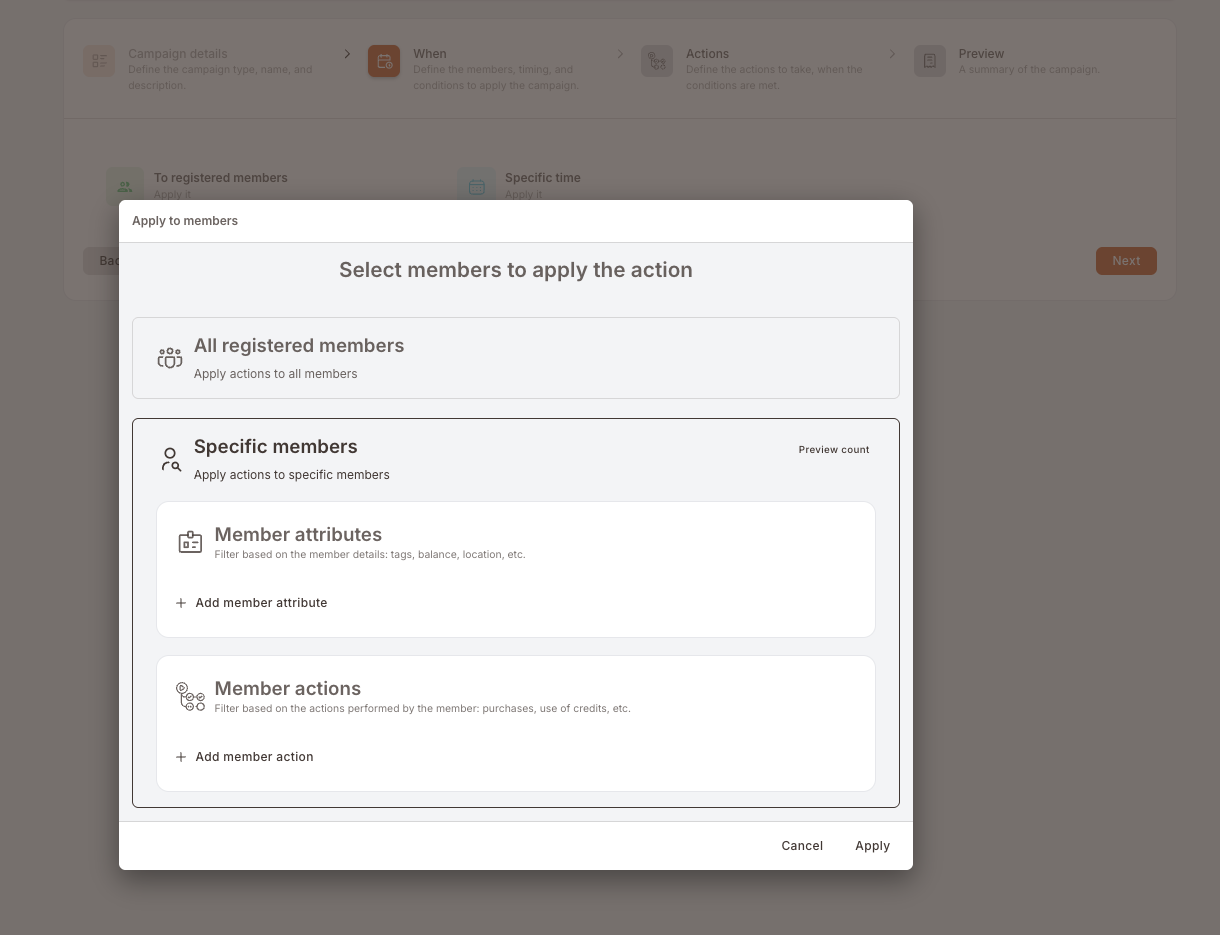
- An audience — the Apply to members tile on step 2, reached from the To registered members default. Either All registered members or Specific members narrowed by Member attributes and Member actions. For a Scheduled campaign the audience does double duty: it's both the "eligible members" filter and the equivalent of a trigger's conditions.
- One or more actions — from the Scheduled action menu. Actions can be stacked (all run together per qualifying member) or split into cases (first matching case wins per member).
The Scheduled wizard
Four steps, same shape as every other kind.
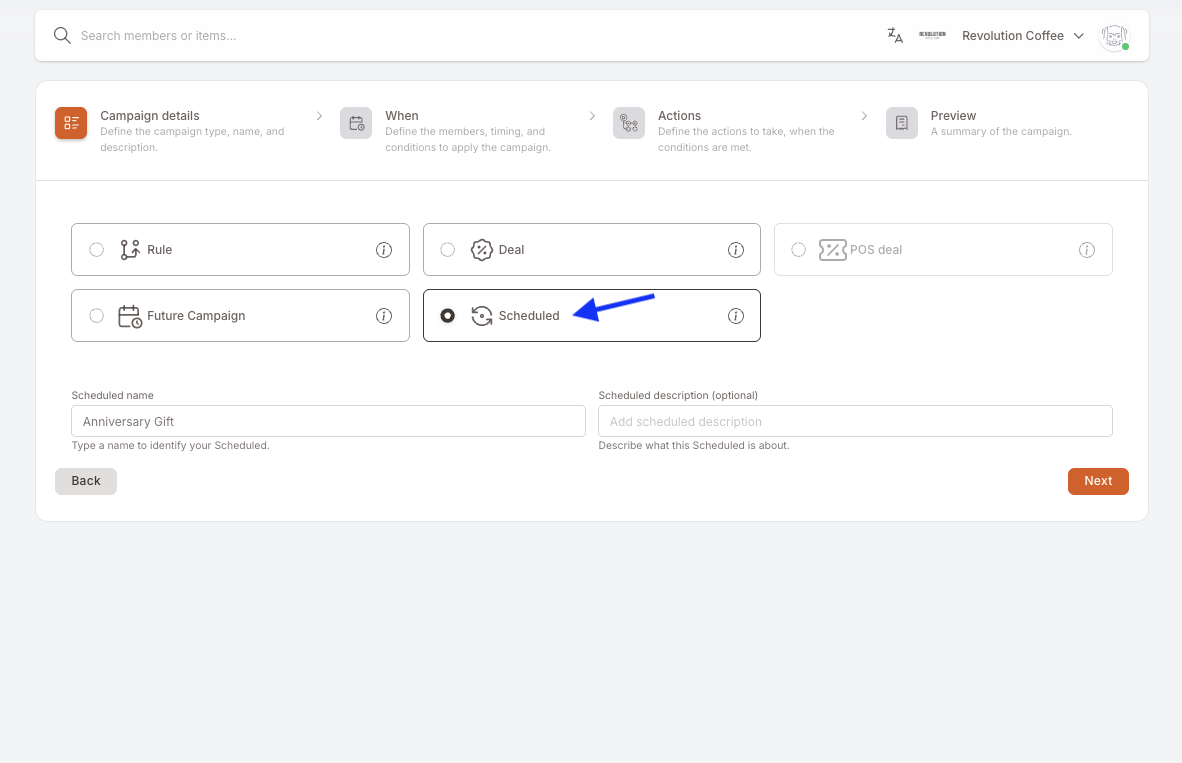
Step 1 — Campaign details
Name, kind (Scheduled), description, initial state. The description field is especially useful for Scheduled campaigns because a recurring campaign's why isn't visible in the audience or actions themselves — park it here so future-you can find it.
Step 2 — When (the schedule + audience)
Step 2 for a Scheduled campaign is two tiles side by side:
- To registered members — opens the Apply to members picker.
- Specific time — opens the Apply at dates and times picker.
A useful framing: on a Rule, step 2 answers "which events should fire this?". On a Scheduled campaign, step 2 answers "at each run, which members should this apply to?" — and both tiles work together to answer it.
Choosing the cadence
The Frequency dropdown covers everything from a daily run to a once-a-year one — daily, weekly, every other week, every 30 days, every 90 days, and yearly. At sets the time of day the run fires.
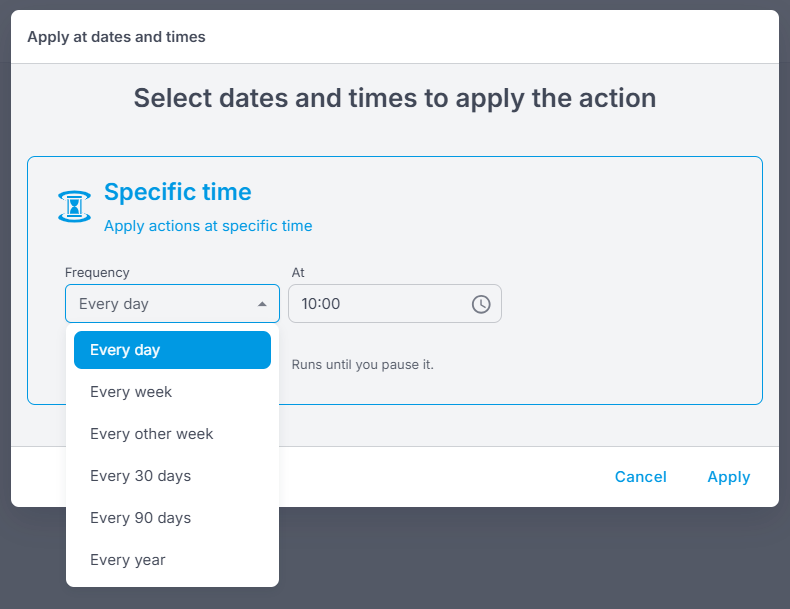
Two fields shape the window the campaign runs in:
- Start date appears on every frequency except Every day, and has to be a future date. It's not decoration: the first run lands on that date, and every later run counts forward from it — so a weekly campaign keeps the weekday you started on, and a yearly one keeps the calendar date. Every day has no start date because there's nothing to anchor; it simply starts running.
- Has end date is an optional toggle available on any frequency. Switch it on and pick an End date: the cutoff after which the campaign stops repeating. The last run is the last occurrence falling on or before it. Leave the toggle off and the helper text says it plainly: the campaign runs until you pause it.
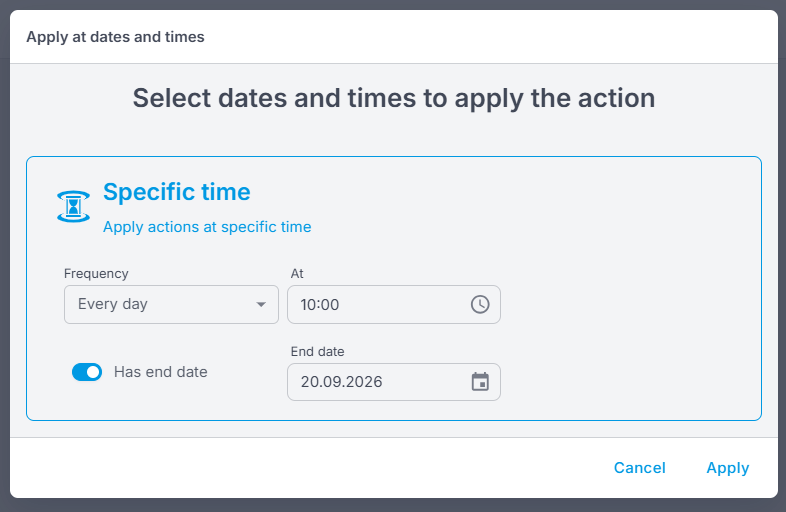
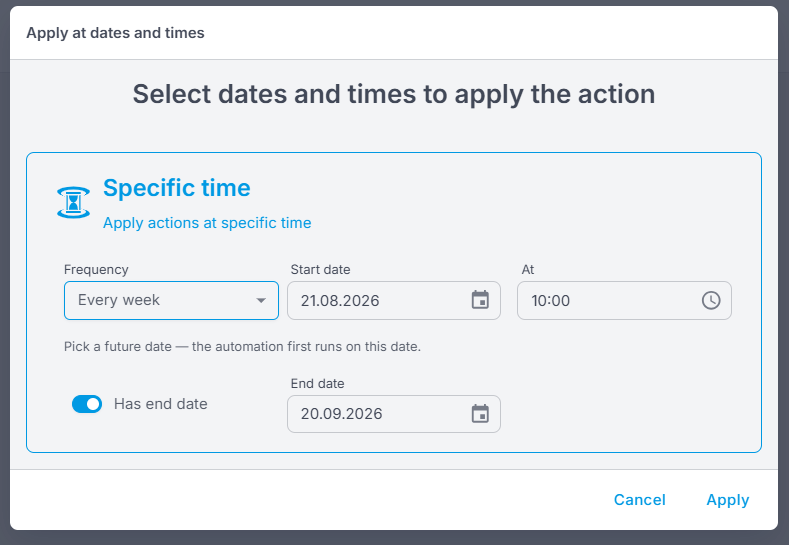
End date is the last date the campaign may repeat. It is not "the day my promotion finishes", and mixing the two up is the most common way to lose a Scheduled campaign.
If the end date falls before the next occurrence, the campaign stops after the runs it has already made, with no error and nothing in the list to say so. A weekly campaign starting Monday 24 August with an end date of Sunday 30 August fires once, on the 24th: the next occurrence would be Monday the 31st, which is past the cutoff.
So:
- Announcing an offer once, even one that lasts a week? That is not a Scheduled campaign at all. Use a Future Campaign.
- Want the announcement repeated? Put the end date after the last send you want, not on the day the offer expires. For four weekly Monday sends starting 24 August, the end date belongs on 14 September or later, not on the 30th.
Scheduled runs are evaluated against the business's timezone, so 10:00 means 10:00 where the business is, not 10:00 UTC. Worth keeping in mind for a chain whose branches sit in different countries — the run time follows the business, not the individual branch. You'll find the setting under Settings → General settings → Time zone. It also means a campaign set for 12:00 stays at 12:00 through a daylight-saving change, instead of drifting by an hour.
Choosing the audience
Under Specific members, filtering is built from two blocks, and you can use either or both:
- Member attributes — filters on what the member is: tags, balance, location, the member-date attributes below, and the rest of the member record.
- Member actions — filters on what the member has done: purchases, credit use, and the other tracked behaviours.
This is the same filtering surface used elsewhere in the platform, so a segment you already know how to build in the member list can be rebuilt here. Preview count tells you how many members currently match before you commit.
The audience is re-read on every run, so edits you make apply from the next run onwards. But a re-read only returns different members if the filter itself resolves differently over time, and the two blocks do not behave the same way here:
- Tags, and the Execution date values, are dynamic. They resolve fresh on each run, so the audience genuinely follows your members.
- Purchase date ranges are absolute. Made a purchase / Did not made a purchase take a fixed Start date and End date. Re-reading
01.05 – 30.07in September returns exactly what it returned in August.
This matters most for win-back campaigns, where a fixed window on a recurring campaign both misses the members who lapsed after the window and steadily accumulates members who registered after it. If a recurring campaign needs a "who has stopped coming" audience, filter on a tag — see the Win-back cadence playbook, or Win-back without RFM if your business does not have the Smart Segmentation add-on. If you genuinely need a fixed window, run it as a Future Campaign and refresh the dates each cycle.
A Scheduled campaign built before the audience filter was widened still opens with the previous three-attribute condition list rather than the two blocks above. That's deliberate — existing birthday and anniversary campaigns keep behaving exactly as they did. New campaigns get the full filter. This is permanent and it works campaign by campaign, not tenant by tenant: there is no migration, and there will not be one. If an old campaign needs the wider filter, build a new campaign rather than waiting for the old one to change.
Member-date attributes
Among the member attributes are the member-carried dates that the birthday and anniversary patterns are built on:
- Birthday Day & Month — the member's birthday, matched on the exact day.
- Registration Anniversary — the day and month the member joined the programme, matched on the exact day each year.
- Registration Anniversary Month — the month the member joined, matched for the whole month.
The first two are day-precise, so the campaign touches a member once a year, on the day. The third widens the window to a whole month, which is the one to pick when the point is "give joiners something during their anniversary month" rather than "greet them on the date".
Each pairs with a dynamic Execution value that resolves to "today" on every run — the condition is written once and never needs maintaining.
Don't try to do birthday-filtering in the schedule tile. The schedule is about cadence and time of day, not about "only when today is someone's birthday". The birthday filter goes in the audience — the schedule just says "every day at 10am"; the audience narrows the daily run to the members for whom today is their birthday.
Step 3 — Actions
Pick one or more actions from the Scheduled action menu. The mechanics mirror Rule's step 3: actions can be stacked (all run together per qualifying member) or split into cases (first matching case wins per member).
The picker holds the same nine actions a Rule has. The one difference is that Add points and Add credits take a fixed amount rather than a percentage of spend: a scheduled run has no purchase to take a percentage of. See the Actions catalog for each action's fields.
Step 4 — Preview
Read-only summary. Save commits the campaign. If the state on step 1 was Draft, the campaign is saved as a draft and won't fire on its next scheduled run until you flip it to Active from the list view.
Lifecycle
Three states — Active, Draft, Paused — and what happens to missed runs
Same three states as Rule:
- Active — the campaign fires on its schedule.
- Draft — saved but not firing. Use while configuring.
- Paused — temporarily not firing.
A scheduled run that would have fired while the campaign was Paused is lost — there's no catch-up when you resume. If a birthday campaign is paused on a Tuesday, the members whose birthday fell on Tuesday don't get backfilled when you reactivate on Wednesday. Plan pauses around this: avoid long pauses on campaigns whose timing is load-bearing.
A campaign with an end date stops on its own once that date passes; it doesn't need to be paused or deleted, though deleting it keeps the list readable. Its last run is the last occurrence on or before the end date, so an end date sitting between two occurrences retires the campaign at the earlier one.
Editing an Active Scheduled campaign takes effect on the next run — changes don't retroactively affect prior ones.
Testing a Scheduled campaign before going live
4-step pattern using a test-user tag and a near-future schedule slot
There's no "fire now" shortcut, so the pattern is to bring the schedule to you:
- Tag yourself and a teammate with something like
test-user. - Build the campaign with state Draft, frequency Every day, audience narrowed to tag = test-user (plus whatever condition you're testing), and the time set a few minutes ahead.
- Flip to Active and wait for that time. Verify the run hit the test members and the actions landed correctly.
- Switch the campaign to its real frequency, start date and production time, then widen the audience to the real target population.
If you also want to test date-matching (e.g. Birthday Day & Month equals Execution day), set the test member's birthday to today for the duration of the test.
Scheduled campaigns evaluate the audience at the configured fire time and don't reconsider members tagged later. If your campaign fires at 09:00 and you add the test-user tag (or set a member's birthday to today) at 10:00, that member won't be picked up until the next run. Apply tags and test attributes before the slot.
The engine records each campaign's last run and skips any campaign that has already run today. A second test on the same day does nothing at all — no error, no send — which reads exactly like a broken campaign. Test once a day, or build a fresh campaign for each attempt.
Scheduled vs Future Campaign
Both are date-driven; the difference is recurrence and the action set each exposes:
- Scheduled: fires repeatedly on a cadence, optionally between a start and an end date. Uses the same 9-action set, with points and credits as a fixed amount.
- Future Campaign — fires once, at a specific moment (now or future). Uses the full 9-action set a Rule would.
The question to ask is how many times the send should happen, not how long the offer lasts. Once is a Future Campaign, even if the date is months away, and even if the offer being announced runs for a week. More than once is Scheduled.
On a Scheduled campaign the end date then bounds the repeats, not the offer, so pick it from the last send you want. See the warning above.
Gotchas
8 things that commonly trip people up
- The start date has to be in the future, and it anchors everything. A non-daily campaign counts its cycle forward from the start date, so picking the wrong day quietly shifts every run — a weekly campaign started on a Thursday is a Thursday campaign. Set it deliberately rather than accepting the nearest available date.
- "Every day" has no start date. It begins on the next occurrence of its configured time. If you need a daily campaign to begin later, keep it in Draft and activate it when you want it running.
- No end date means no end. Without the Has end date toggle switched on, the campaign runs until someone pauses it. Set one while you're building the campaign, while you still know how many runs you actually want.
- The end date is the automation's cutoff, not the offer's. Setting it to the day the promotion expires is the single most common way to get one send where you expected several. It has to sit after the last run you want. See the warning above.
- The time of day is the business's local time. A run configured for 10:00 fires at 10:00 in the business's timezone. If your group spans countries, don't assume one clock.
- Pauses drop runs silently. A Scheduled campaign paused over a holiday doesn't backfill the days it missed. If the campaign is driving member-visible comms, a dropped run is a member who never got theirs.
- The audience is read from the analytics store. A member who registered or purchased minutes before a run may not be in that run's audience yet — the data behind the filter lags live member records slightly. Campaigns created before this update read member records directly and aren't affected.
- Scheduled campaigns don't respond to member events. A member who joins today won't be caught until the next scheduled run. If you want instant reaction to a join event, use a Rule on Joins the program instead of (or alongside) a Scheduled campaign.