Theme: colours, type and shape for the whole app
Theme holds the look your whole app shares: its colours and typeface, its corners and shadows, and the style of every button, card and popup and of the boxes members type in. Set it there once and every screen follows, except a part that has a colour of its own.
Left bar → Theme (the palette) → open a section → change a value → check the phone → Publish.
What Theme sets
Colours, Type, Shape and space and Shadows set the basics. Buttons, Boxes members type in, Cards and Popups each style one kind of part, and whatever you leave empty there comes from the basics. A filled button, for example, uses Main colour, and its words use Words on the main colour, until you fill in Buttons.
| Section | What it sets, for the whole app |
|---|---|
| Colours | The palette: Main colour and Second colour, the page, the cards, the words and the lines, the colours for good news, warnings and errors, and Ghost text in boxes, the example text an empty box shows |
| Type | The typeface and the base size of the text |
| Shape and space | How round the corners are, and the space between parts and along the edges of the screen |
| Shadows | The light, medium and heavy shadows the parts use |
| Buttons | Fill, Words, Corners and Height of every button |
| Boxes members type in | Fill, Words, Line and Corners of every box in a form, such as the sign-in form |
| Cards and Popups | Fill, Words and Corners of every card and every popup. Cards also have a Shadow |
| Wallpaper | A colour or a picture behind every screen |
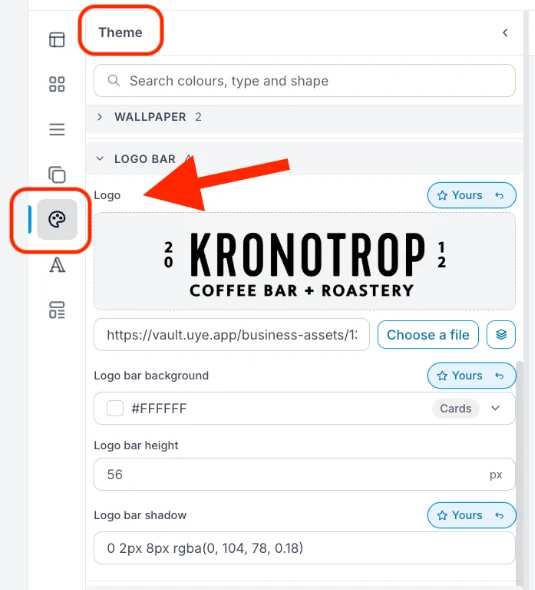
| Logo bar and Title row | The bar with your logo at the top, and the row with each screen's name, which can stay at the top while members scroll |
| Brand and install | The browser tab icon, the sign-in logo, and the name and icon of the installed app: see Change your logo, tab icon and app name |
The app shows the example text in an empty box at half strength, so it always looks fainter than the colour in Ghost text in boxes. Pick a colour that stands out from the box a little more than you want the text to.
Change it
- In Hub, open User Interfaces → Web & App. Your app appears on the phone.
- In the narrow bar on the left, click Theme (the palette). Preview, at the top, shows a card, a box, a button and the bar in your current look.
- Open a section and change a value. The search box finds a setting by its name: type corners, for example.
- Look at two or three screens on the phone, then press Publish. See Publish, and undo a mistake.
A value set for your app shows Yours. The arrow next to it (Reset this field) takes your value away, and the setting goes back to its starting value.
A part with its own colour does not follow Theme
A colour set on one part, under Properties → Style, belongs to that part, and changes in Theme no longer reach it: change Main colour and that part keeps its old colour. The same goes for any other value a part has of its own, such as its corners. You can tie a colour back to Theme one part at a time or, for Main colour and Second colour, all at once.
One part
Click the part on the phone and open the Style tab. Under its colour:
- Follows Main colour means it is tied to Theme already.
- Follow Main colour means it has the same colour, but as a copy. Click it, and from then on the part follows Theme.
The editor names whichever Theme colour the part matches, not only Main colour. When two Theme colours are the same, white for example, check that it offers the one you mean. A Theme colour picked inside the colour box is a copy too, and the link to tie it then appears under it.
All at once
In Theme → Colours, a note under Main colour and under Second colour counts the places where that colour is still written as a colour of their own, for example "4 places still use #E30613 as their own colour." Click Change them too: from then on those places follow the Theme colour, and the note goes away.
The note looks for the colour Main colour had when you opened Theme. Click Change them too first, then pick the new colour, and every one of those places changes with it. Straight after a change it works too, as long as Theme has stayed open in between.
Not in Theme
- The bar members tap to move around: open Navigation in the left bar. Theme's Preview only shows it.
- A colour for one part only: click the part on the phone, then Properties → Style. That part then keeps its own colour, as explained above.
Related
- Start here: the editor's three parts, and what Yours means
- Change your logo, tab icon and app name
- Publish, and undo a mistake