Change your logo, tab icon and app name
Your logos, the icon in the browser tab and the name your app gets when a member installs it are all set in one place: Theme. Change them there and every screen follows. One screen, Sign in for example, can also show a logo of its own.
Left bar → Theme → Logo bar and Brand and install → Choose a file, or type the name → Publish.
What each one changes
| In Theme | What members see |
|---|---|
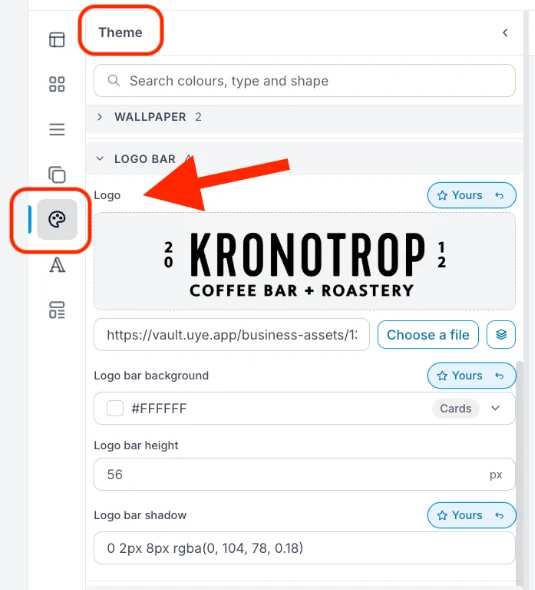
| Logo bar → Logo | The logo in the bar at the top of your app |
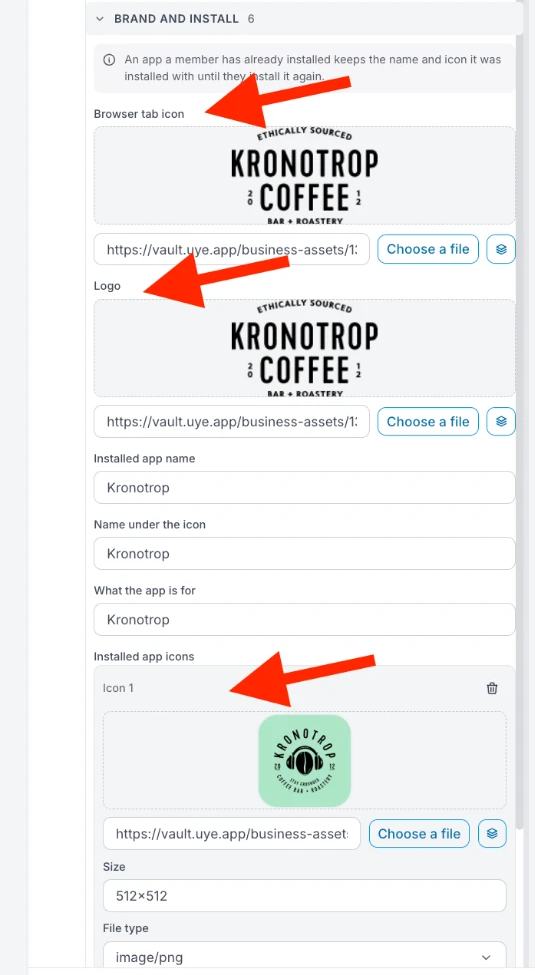
| Brand and install → Browser tab icon | The small picture in the browser tab |
| Brand and install → Logo | The logo on Sign in, unless that screen has its own |
| Brand and install → Installed app name | The app's name when a member installs it |
| Brand and install → Name under the icon | The label under the icon on the phone's home screen. Keep it short: phones cut long names |
| Brand and install → What the app is for | A short description some browsers show when they offer to install the app |
| Brand and install → Installed app icons | The icon on the phone's home screen |
Steps
-
In Hub, open User Interfaces → Web & App. Your app appears on the phone.
-
In the narrow bar on the left, click Theme (the palette). Its list opens: Wallpaper, Logo bar, Title row and more.
-
Open Logo bar. Under Logo, click Choose a file and pick the picture from your computer. You can also drop a picture on the box, or paste a link to a picture that is already online.
-
Further down the list, open Brand and install:
- Browser tab icon and Logo: Choose a file for each.
- Installed app name, Name under the icon and What the app is for: type them in. Usually your club's name, and a short line about it.
- Installed app icons: under Icon 1, Choose a file. Use a square picture, 512 × 512 px, in PNG.
-
Check the phone in the middle, then press Publish. See Publish, and undo a mistake.
The app is published, but the tab icon, logo and app name may still be the old ones. Press Publish again while it is still lit, then open your app to check.
An installed app keeps the name and icon it was installed with until the member installs it again. Set these before you invite members to install your app.
A logo for one screen only
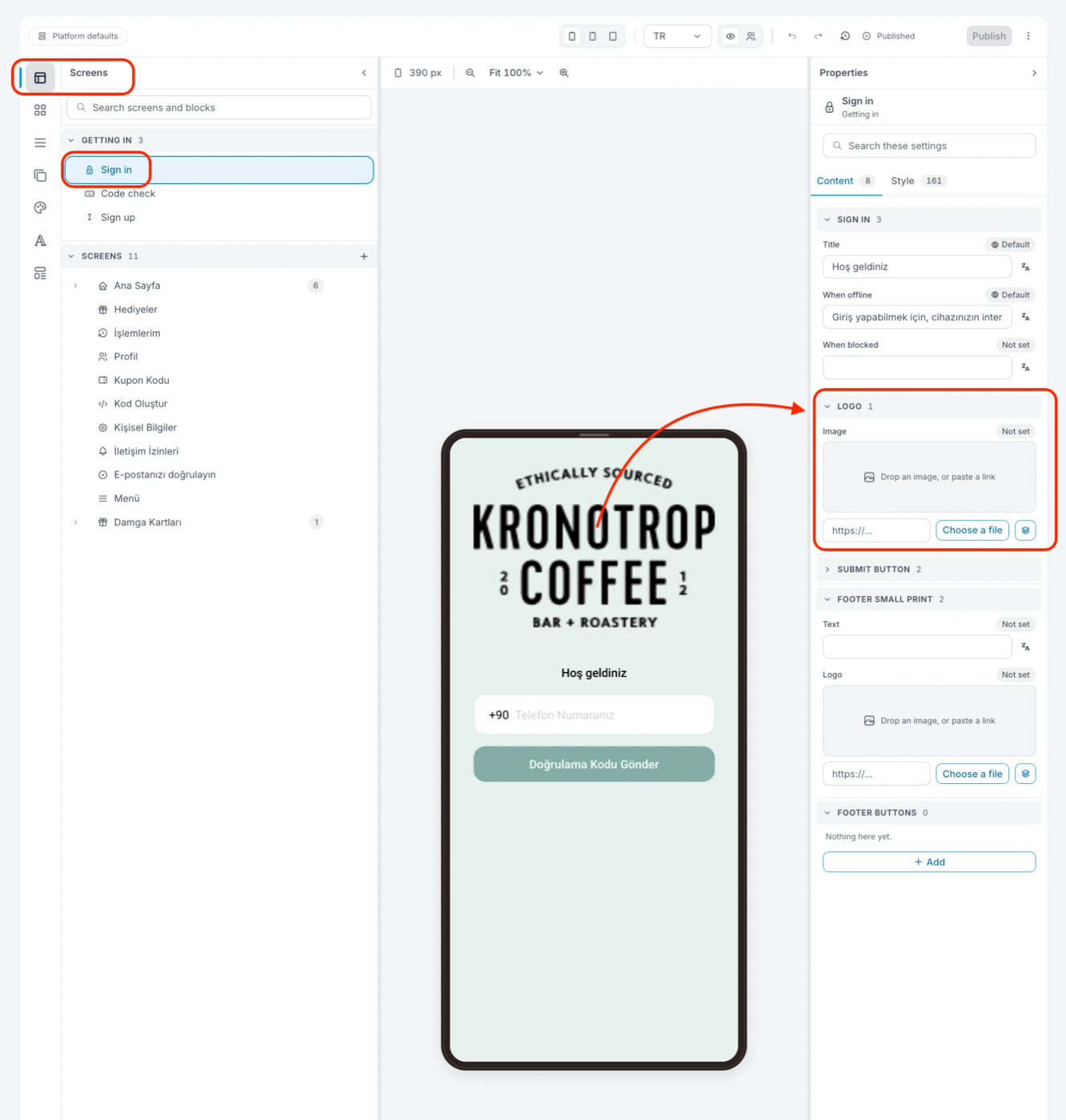
Any screen with a Logo block can show its own logo instead of the one from Theme. On Sign in, for example:
- In the left bar, click Screens, then Sign in (under Getting in).
- On the right, under Properties → Content, open Logo. Not set means the screen uses the logo from Theme.
- Click Choose a file and pick the picture. The label changes to Yours: this screen now keeps its own logo, and a new logo in Theme no longer reaches it.
- To use the Theme logo again, click the arrow next to Yours (Reset this field).
- Press Publish.
Related
- Start here: the editor's three parts, and what Yours means
- Publish, and undo a mistake
- Communication: the sender name of your emails and SMS, which is not set in the editor