Summarize with AI
Add the menu and map links to your app
In short
The Menú and Locales buttons in the bottom bar of your app open a link you choose: your menu (carta) and your map. You set them under Navigation. Until you do, the button does nothing.
Steps
-
Open User Interfaces → Web & App.
-
In the narrow bar on the left, click Navigation.
-
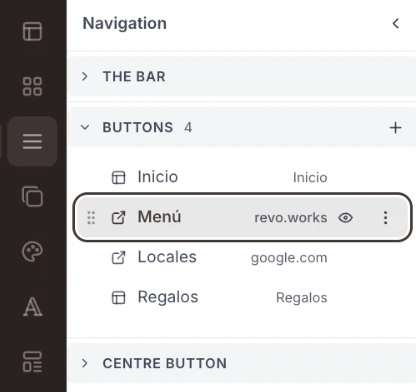
Under Buttons, click Menú (the menu) or Locales (the map).
-
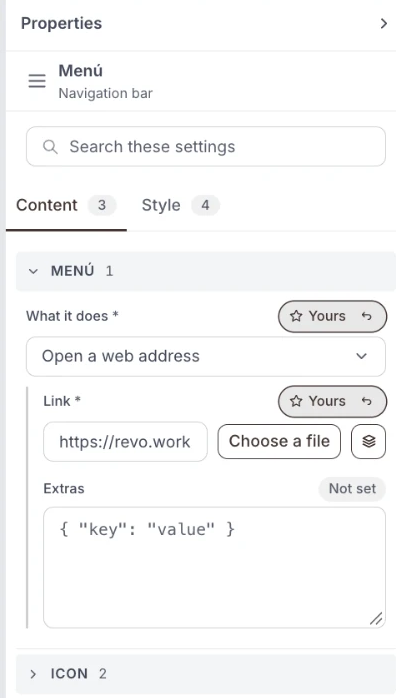
On the right, on the Content tab, open What it does and choose Open a web address.
-
Paste the link: the address of your menu, or of your place on the map.
-
Do the same for the other button if you need it, then click Publish.
Good to know
- Check the link first. Open it in your own browser. A member who taps a link that does not open gets nowhere.
- A button you do not need. If you have no menu or no map to show, hide that button with the eye icon on its row in the Buttons list.
- The name on the button. The words Menú and Locales are the button's name. Changing the name does not change the link.
- Check it in the preview. Open a preview link, as shown in Check it before your members see it, tap the button on the phone and confirm it opens your page.